Google Timeline, and what actually works
Timeline used to live on the web and export a day at a time as KML. It does not any more. Here is what changed, what your phone gives you today, and the route that still gets Google data onto a poster.
Where
Your phone. There is no desktop Timeline.
Arrives
Immediately, on the device
You get
JSON — Timeline.json or location-history.json
We read
KML and KMZ. Not Timeline JSON, yet.
- 01
First, the thing nobody tells you: Timeline left the web
Google moved Timeline to on-device storage and retired the desktop view. Its own help page now says Timeline is not available for Maps on your computer. The old “Export this day to KML” link that most guides still point at is gone with it.
support.google.com/maps
If you have an old Takeout archive on a drive somewhere, it may still contain the KML era. Those files import fine.
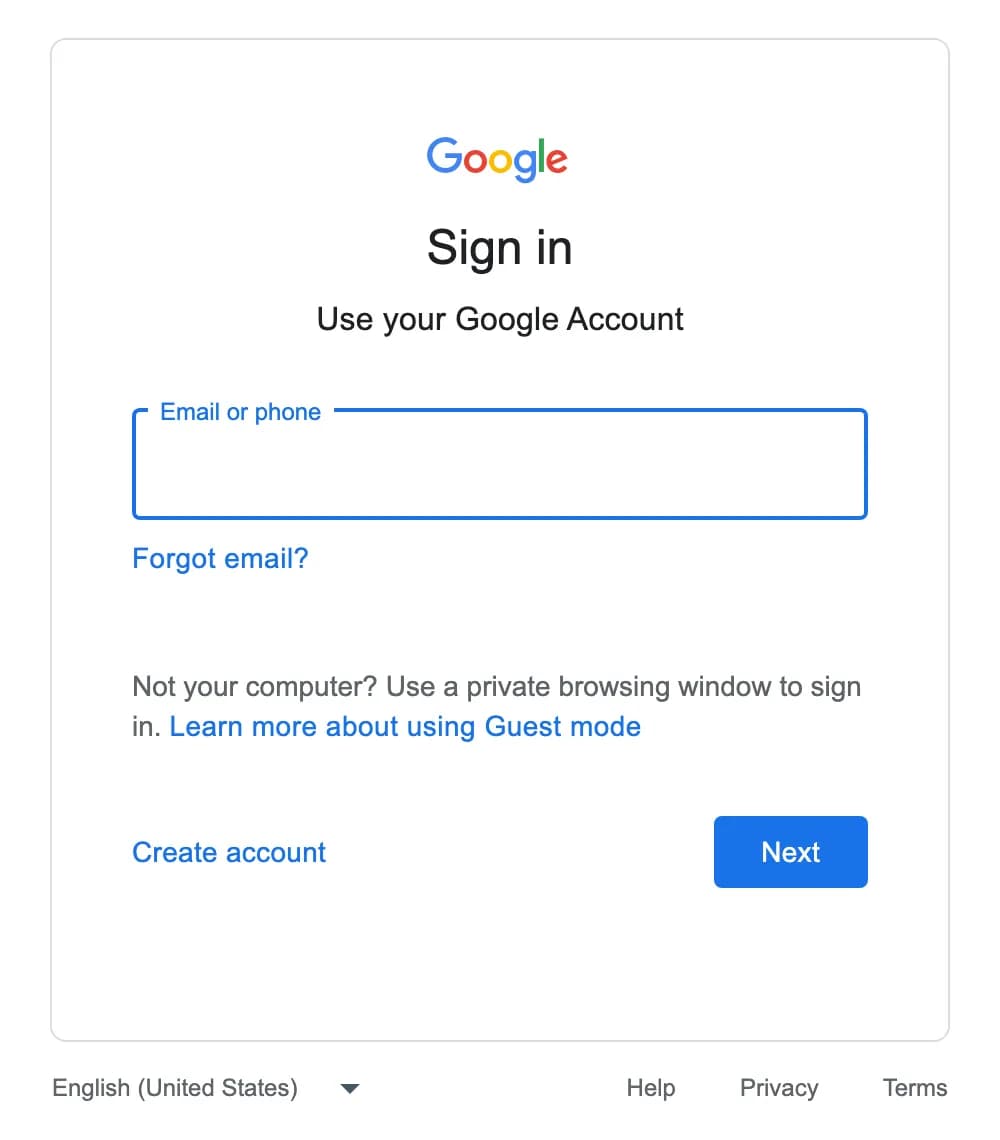
ScreenshotWhere takeout.google.com sends you when you are signed out — the Google Accounts sign-in, captured 7 September 2026. Every Takeout and Timeline screen sits behind it, which is why the steps below are drawn rather than photographed. - 02
On Android: export Timeline from the system settings
It is not in Google Maps on Android — it is in the phone's own Settings app, under location. Tap through, confirm, and choose where to save. A notification says “Export complete” when it is done.
SettingsLocationLocation servicesTimelineExport Timeline data
This may have moved. Android's settings tree differs between manufacturers and versions, and this one is on a signed-in phone rather than a page we can capture. If Location services is not where this says, search the Settings app for Timeline.
Location services, then Timeline
Screen 1 — Location services
Emergency Location ServiceGoogle Location AccuracyTimelineopens screen 2Screen 2 — Timeline
Export Timeline dataContinue → choose a location → Save
DiagramDiagram — two screens in sequence, drawn in one frame: the Location services list, then the Timeline screen it opens. - 03
On iPhone: export it from inside Google Maps
Different app, different path. Open Google Maps, tap your profile picture, then Settings. The export sits under your personal content, and hands the file to the iOS share sheet — save it to Files, where it is usually called location-history.json.
Google MapsProfile pictureSettingsPersonal contentExport Timeline dataSave to Files
This may have moved. This is inside a signed-in Google Maps app, so we have not seen it either — the labels come from Google's help pages. Google reshuffles this menu; if Personal content is not there, look for Timeline under Settings.
Google Maps › Settings
Account settings
Personal contentLocation settings
Location History is onExport Timeline dataShare sheet → Save to Files
DiagramDiagram — the iOS path inside Google Maps, drawn from Google's help pages rather than captured. - 04
Now the bad news, plainly: we cannot read that file yet
What comes off the phone is JSON. Our importer reads GPX, KML and KMZ, and Waze CSV. Timeline JSON is on the list to support and is not there today, so uploading it will fail rather than half-work.
We would rather tell you here than after you have waited for an export. Keep the file — when the parser lands, it will still be valid.
- 05
What does work today: KML from Earth or My Maps
Google still writes KML from Google Earth and from My Maps, and both import perfectly. If you have Timeline places or routes you care about, rebuilding them in My Maps and exporting to KML is the reliable path — and an old Takeout archive from the KML era works untouched.
My Maps⋮Export to KML/KMZ
What we do with the file
So you know what survives the trip from their servers to your wall.
- KML LineStrings become journeys with the geometry intact; KML carries no per-point time, so we take the span from the placemark's TimeSpan where one exists.
- A gx:Track — the shape Google Earth writes for a recorded path — does carry per-point timestamps, and we use them.
- Point placemarks become stops rather than routes, so a saved-places export gives you pins, not lines.
- KMZ is just a zipped KML. Upload it as-is; we open it for you.
When it goes wrong
Where this trips people up, and what to do about each.
Do not upload the JSON. Here is the route that works.
Timeline's phone export is JSON and our importer will refuse it. KML from Google Earth, My Maps or an old Takeout archive imports today — that guide is three steps long.